

@ChainPatrol in your shared Slack channel with ChainPatrol and ask things like “what did we take down this week?” or “is this link blocked?”. It can also report links, review proposals and file disputes, but only after someone in the channel clicks Confirm.
The ChainPatrol Assistant is available to selected customers. To get access,
contact your ChainPatrol representative or
support@chainpatrol.io.
Before you start
- Your Slack workspace is connected to ChainPatrol. See the Slack integration.
- You have a shared Slack channel (Slack Connect) with ChainPatrol. This is where the assistant answers.
- You are an Owner or Admin of your ChainPatrol organization. Other members can see the settings page, but can’t turn the assistant on or off.
Turn it on
1
Open the ChainPatrol Assistant settings
In the ChainPatrol app, go to Settings and select ChainPatrol Assistant in the sidebar.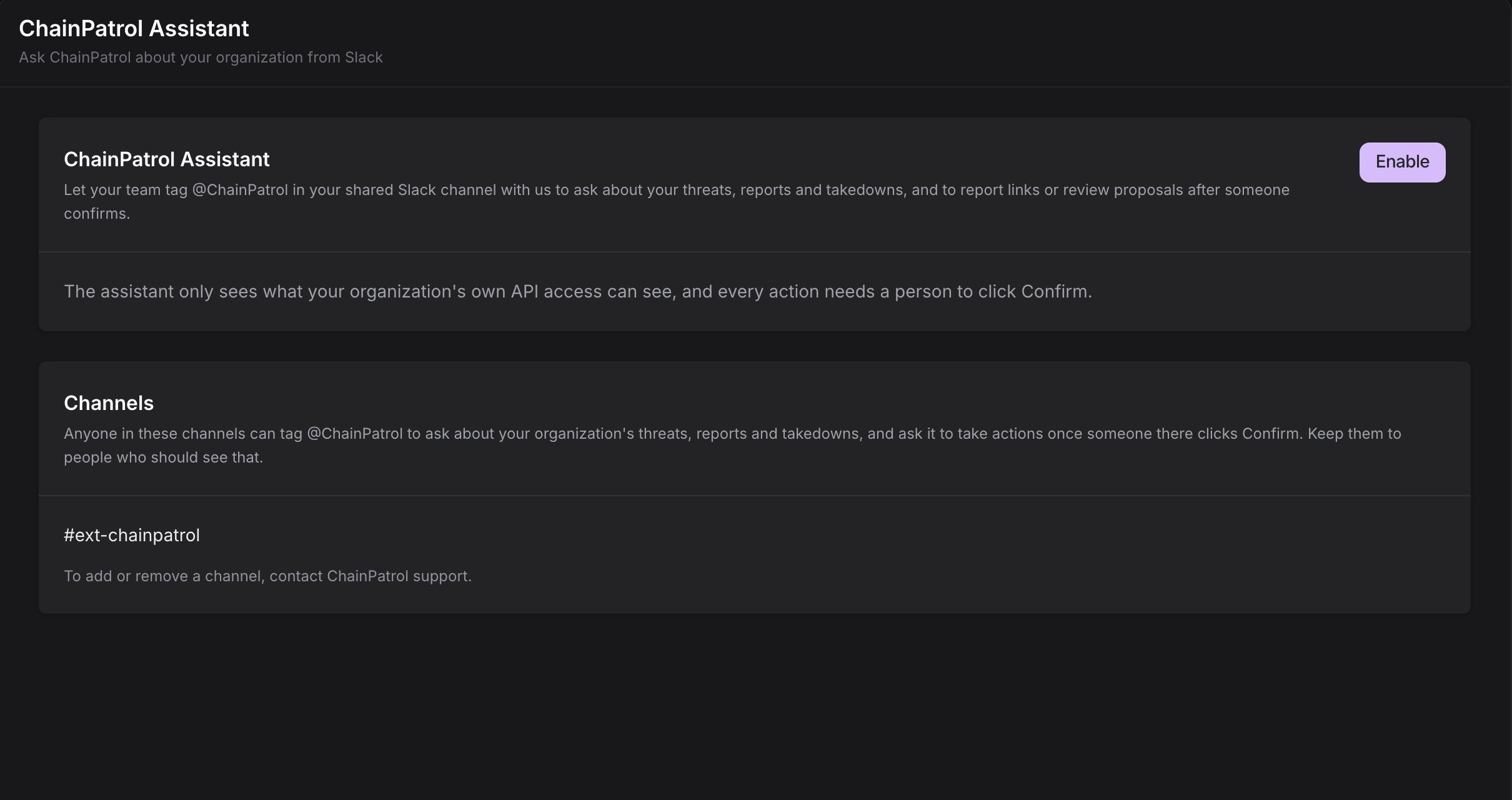
2
Click Enable
Click Enable. The status changes to Active, and the page shows who turned it on and when.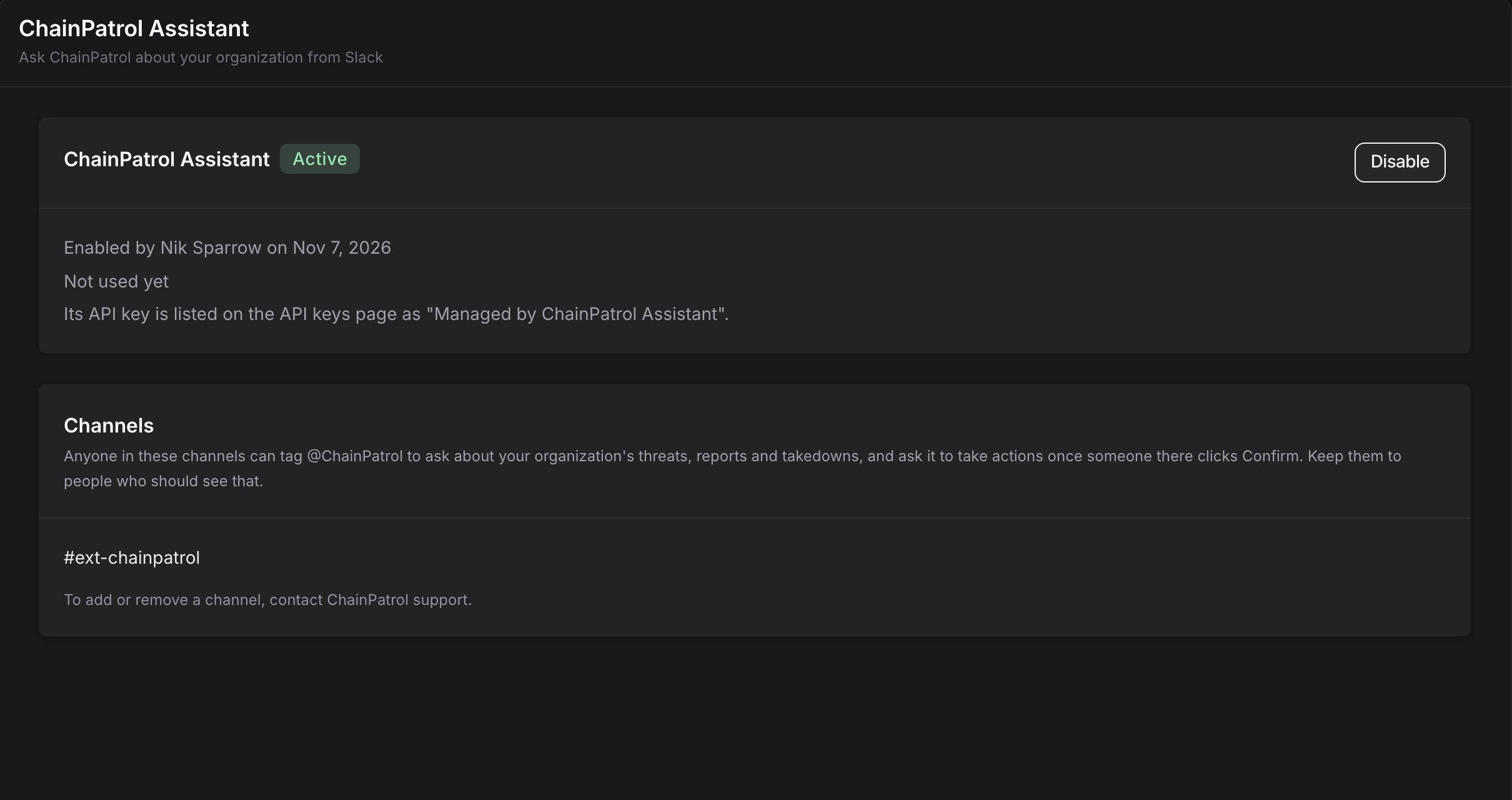
3
Ask ChainPatrol to add your channel
The assistant only answers in channels that ChainPatrol has added for your organization. Contact ChainPatrol support to add your shared channel. Once it is added, it appears under Channels on the same page.When a channel is added, the assistant posts and pins a short welcome message there, so everyone in the channel knows it is available.
Ask a question
Tag@ChainPatrol with your question. The assistant first replies “Looking into it…” in a thread, then replaces that message with its answer.
- Follow-ups: reply in the same thread and tag
@ChainPatrolagain. It reads the earlier messages in the thread, including its own answers, so you don’t need to repeat yourself. - Screenshots: you can attach a screenshot of a suspicious site or message. The assistant reads the links, accounts, wallet addresses and other details shown in the four most recent images in the thread.
- Report links: paste a link to a ChainPatrol report and it tells you, for each asset, how it was reviewed, whether it is blocked, whether it is still live, and how its takedown is going.
What you can ask about
Assets
Whether a link, account or address is blocked, allowed or has been reported.
Reports and threats
Your reports, threats, watchlist, and proposals waiting for your review.
Takedowns
Takedowns in progress and completed, and how long they took.
Metrics
Threats found, where they were found, takedown success rate and time to takedown.
Your setup
Your brands, allowlist, asset groups and detection settings.
How ChainPatrol works
Questions about the dashboard, integrations and API, answered from these docs, with a link to the page it used.
Actions and Confirm
The assistant can take three actions:
Ask in plain words, for example “@ChainPatrol please report this link”. The assistant never acts on its own. It posts a card in the thread that shows exactly what will be sent, with Confirm and Cancel buttons.
- Nothing happens until someone in the channel clicks Confirm.
- The card expires after 15 minutes. After that, ask again.
- Only one click counts. Once someone confirms or cancels, the card shows who did it and what happened.
Talk to a human
Ask the assistant to talk to someone, or tell it something is urgent. It passes your message to the ChainPatrol team, and a team member replies in the same Slack thread. If you want a call, it shares a link to book one with our customer success team.Limits
- Where it works: only in channels ChainPatrol has added for your organization. It doesn’t answer in direct messages. In any other channel, only you see a reply saying it isn’t turned on there.
- How often: each person can ask up to 10 questions in a row, then about one more a minute. Past that, the assistant asks you to wait a bit and try again.
- Proposal reviews: together with reviews made through the API, up to 10 proposal reviews per organization per day. Reviews on the Review page in the dashboard don’t count toward this.
- Talk to a human: up to 10 requests per organization per hour.
Turn it off
Go to Settings → ChainPatrol Assistant and click Disable, then confirm. The assistant stops answering at once, and its API key is revoked. You can turn it on again later, and it gets a new key. If the page shows Needs attention, the assistant’s API key was revoked (for example, from the API keys page). Click Re-enable to give it a new key. If it shows Paused, ChainPatrol has paused the assistant for your organization. Contact support with any questions.Privacy
- The assistant only sees what your organization’s own API access can see. It can’t look up other organizations.
- Answers are written by an AI model. ChainPatrol sends it the thread you tagged it in and the data it looks up for your question. See How we use AI.
- Your conversations with the assistant are not used to train AI models, either ChainPatrol’s or the AI provider’s. ChainPatrol doesn’t store the conversation itself; it keeps only the record of confirmed actions described below.
- For every action someone confirms, ChainPatrol keeps a record of what was sent, the result, the channel and thread, and the Slack names and IDs of the person who asked and the person who confirmed. Cancelled and expired cards are not recorded.
- Links in its answers are written in a safe form (for example
hxxps[://]example[.]com), so nobody opens a phishing site by accident.